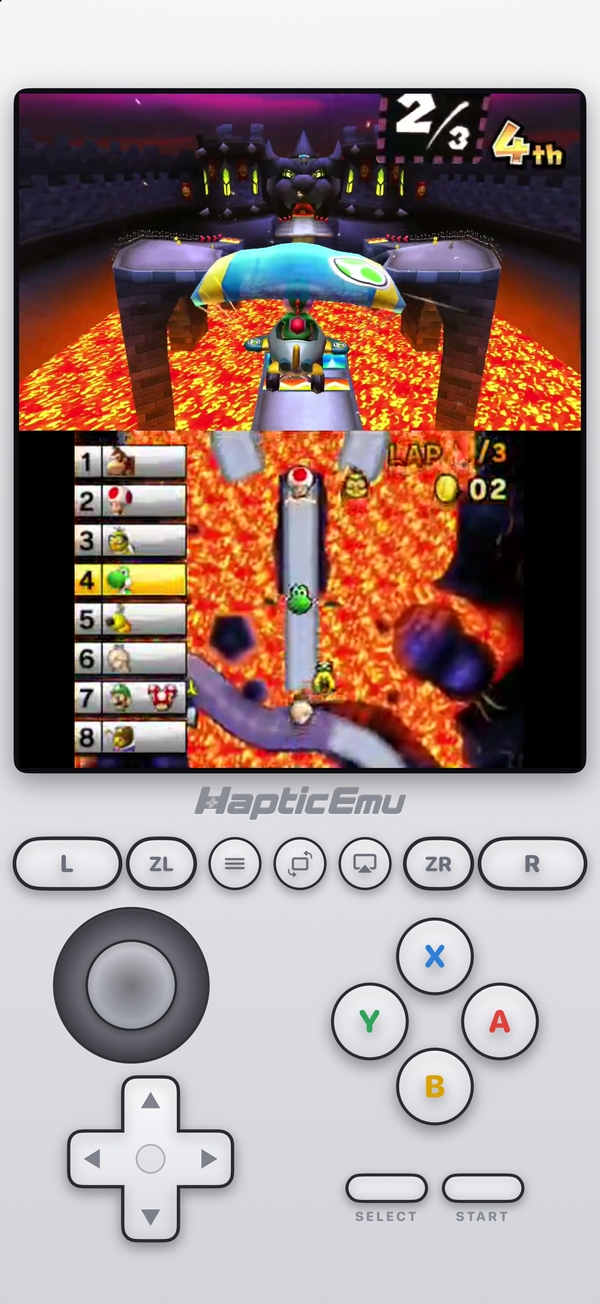
For a long time the answer to "can I play 3DS games on my iPhone?" was a list of caveats: sideload this, enable JIT with that, find a keys file you probably shouldn't. Since Apple opened the App Store to emulators in April 2024, that's changed, and in October 2026 Haptic Emulator added the 3DS as its 25th system.
Here's what that actually involves, including the parts that aren't perfect yet.
What you need
- An iPhone on iOS 18 or later. That's an iPhone XS or newer. A recent phone makes a real difference for 3DS, more than for any other system — more on that below.
- Haptic Emulator 1.0.13 or later from the App Store. Free, ordinary install.
- A decrypted backup of a 3DS game you own, as a
.3ds,.ccior.cxifile. Homebrew.3dsxfiles work too, as do the compressed.zcci,.zcxiand.z3dsxversions.
That's the whole list. No keys file, no firmware, no system archive.
"Decrypted" is the one word that matters
3DS cartridges are encrypted, and a straight copy of one stays encrypted. Haptic plays decrypted game files only. It checks when you import, and if a file is still encrypted it tells you so rather than failing silently later. .cia files are installers, not games, and aren't supported either. If an import is refused, that's almost always why.
Why nobody asks you for keys
Most 3DS emulators you read about want an aes_keys.txt file or a dump of the console's system files before some games will boot. That's the step where people end up on sites they shouldn't be on.
Haptic skips it. Its 3DS support is built on Azahar, the open-source emulator that carries on from Citra, and it bundles open-source stand-ins for the system data games look for — fonts and the like. With a decrypted game there is nothing for keys to unlock, so nothing is asked for.
Getting started: the one-minute part
- Get Haptic Emulator from the App Store. Nothing to configure first.
- Tap import and pick the game from Files, a folder, or the clipboard.
- Let it file itself. The game lands on a 3DS shelf with its box art.
- Press play. The 3DS layout loads: Circle Pad, D-pad, A/B/X/Y, L and R, ZL and ZR, Select and Start.
Two screens, one phone
The 3DS had a wide top screen and a smaller touch screen below it. Haptic shows them exactly that way: top over bottom, centred, at the console's real proportions. In portrait the controls sit underneath, like holding the handheld open.
The lower screen is a real touchscreen. Tap menus, the map or the move list directly with your finger, which is quicker than a stylus for most things. Turn the phone sideways and there are landscape layouts too, including an immersive one with the controls floating over the picture.
What there isn't, yet, is a choice of layout. You can't put the screens side by side or swap which one is bigger. For the DS, Haptic has that; for the 3DS, it's stacked only for now.
How well it runs
This is the honest section. App Store apps aren't allowed to use JIT, the trick that makes the hardest emulators fast. Haptic's 3DS emulation runs without it, which means nothing to set up and nothing that breaks with an iOS update — and it also means the processor has to work harder.
To keep up, Haptic runs the emulated 3DS CPU at a reduced clock. In practice:
- 2D and lighter 3D games — platformers, puzzle games, RPGs that are mostly menus and walking — play well on a recent iPhone.
- The heaviest 3D games can slow down in their busiest scenes, and more so on older phones. That's true of every App Store 3DS emulator, not just this one.
- The first time an effect appears, it may be missing for a frame or two while the phone prepares it, instead of the whole game freezing. The second time it's instant, because it's kept.
You can render at 1×, 2× or 3× the original resolution. 3× is 720p per screen, which is about as much detail as a phone screen can show. If a heavy game struggles, dropping a step is the first thing to try.
Controls and controllers
The on-screen layout is modelled on the New Nintendo 3DS, with ZL and ZR alongside the shoulders, and every press answers through the Taptic Engine. Real controllers connect too — PlayStation, Xbox and MFi — and on a controller the right stick works as the New 3DS's C-stick.
What doesn't work
- The 3D effect. It needed the 3DS's special screen. Games show in 2D.
- Motion, microphone and camera. Games that ask you to tilt, blow or take a photo can't be completed in those moments.
- Wireless and online play. Nintendo shut down 3DS online services in April 2024, and local wireless needs two consoles.
- Installing updates or DLC, since those come as
.ciafiles. - Cheat codes aren't offered for 3DS yet, though they are for older systems.
That's a real list, and it's worth knowing before you start. But the core of what made the 3DS good — the games themselves, with a touchscreen under your thumb — is all there.
For the curious (optional)
The 3DS top screen was 400×240 pixels and the bottom 320×240, which is why the top one is wider on the phone. Inside was an ARM11 processor and a PICA200 graphics chip. Emulating that ARM processor is the expensive part: a JIT translates its code into the phone's own once and reuses it, while an interpreter like Haptic's reads it instruction by instruction, every time. That's the whole reason App Store 3DS emulation runs slower than the sideloaded kind, and why a newer iPhone helps more here than anywhere else.
Frequently asked questions
Can you play 3DS games on an iPhone?
Do I need a jailbreak, sideloading or JIT?
Which 3DS file types does Haptic Emulator play?
Do I need AES keys, firmware or system files?
How do the two 3DS screens fit on a phone?
Does the 3D effect work?
Does Haptic Emulator come with 3DS games?
The 3DS, and 25 more.
Haptic Emulator runs 26 retro systems on iPhone and iPad — free to play, and it ships no games: it plays the ones you already have.

Free to play · all 26 systems · iPhone & iPad