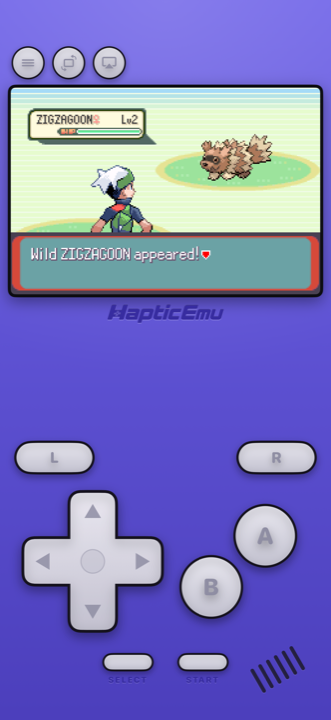
The Game Boy Advance had the best run of 2D games anyone has ever put on a handheld, and most of them never made it anywhere else. If you want to play them today, the honest answer is your phone.
The good news: it's a normal App Store download now. No jailbreak, no plugging into a computer every week, none of the awkwardness this used to involve.
The screen is better than you remember
This is the part that surprises people. The original Game Boy Advance had no backlight. You played it near a window, or tilted it toward a lamp, and squinted. It's the single most common memory anyone has of the thing.
On a phone, that game is bright, sharp and properly lit for the first time. The sprite work those artists did — some of the finest pixel art ever made — is finally easy to actually see.
- Controls that fit the GBA. D-pad, A and B, and the L and R shoulders along the top — not one generic gamepad stretched over every console.
- Every press taps back. The iPhone's Taptic Engine answers each button, so you're not just poking silent glass.
- Save any time you like. Which changes the harder games completely.
- It's already in your pocket. Which was always the point of a Game Boy.
Getting started: the 30-second part
Already have the ROM on your phone? Then this is quick.
- Get Haptic Emulator from the App Store. Ordinary install, free, and nothing expires after a week.
- Tap import. Point it at your file from the Files app, a folder, or the clipboard. Zipped files work as they are.
- Watch the box art appear. The cover downloads on its own and the game lands on your Game Boy Advance shelf looking like a real boxed game rather than a filename.
- Press start. The Game Boy Advance controls come up automatically.
Got a whole folder rather than one game? You can bring them all across at once instead of doing them one by one.
Save anywhere — even where the game wouldn't let you
Games that have their own save still work exactly as they always did. But you can also snapshot the game at any moment and jump straight back to it. For the tough platformers and the long RPGs, it's the difference between finishing something and giving up on it at the same boss for the third time.
Two things worth doing
Turn on the handheld screen filter
Game Boy Advance art was drawn for a small, dim screen, and the filter puts that texture back. It's the difference between "an old game blown up" and "the game the way you remember it." There are old-television and scanline options too if you want to go further.
Put the buttons where your hands want them
Every on-screen button can be dragged somewhere more comfortable, and you can size the D-pad to suit you. If you'd rather use a real controller, PlayStation, Xbox and MFi pads all connect — and for a 2D platformer, a physical D-pad is hard to beat.
A couple of things to know
Link cable stuff doesn't work. Trading and two-player-over-a-cable needed two machines wired together, and a single phone can't recreate that. Everything single-player is unaffected.
A few odd cartridges were odd. A handful of GBA games had extra hardware inside — tilt sensors, solar sensors. Those are an awkward fit for a flat sheet of glass. It's a very small corner of the library.
For the curious (optional)
You don't need any of this to play. It's here if you like knowing why things look the way they do.
The Game Boy Advance ran at 240×160 pixels on an unlit screen, so artists drew for a dim panel with visible pixel structure and colours that would wash out slightly. Modern phone displays are far sharper and brighter, which can make that same art look harsher than it was ever meant to look. The handheld filter reintroduces that panel texture, which is why the picture often reads as more faithful with it switched on.
Speed isn't a factor here. A modern iPhone runs Game Boy Advance games many times faster than the original hardware managed, so nothing in the library is demanding — anything you adjust is about presentation, not performance.
Frequently asked questions
Do I need to jailbreak my iPhone to play Game Boy Advance games?
Does Haptic Emulator come with games?
Can I use a real controller?
Will my old save files still work?
Does it work on iPad?
Your whole childhood. One download.
Haptic Emulator runs 21 retro systems on iPhone and iPad — free to play, and it ships no games: it plays the ones you already have.

Free to play · all 21 systems · iPhone & iPad