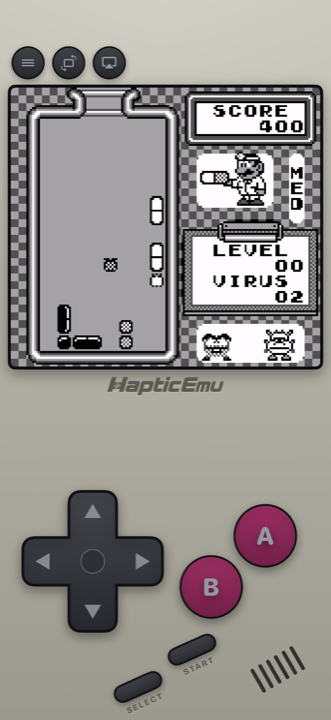
The Game Boy is the console most people's memories are actually attached to — the grey brick, four AA batteries, playing under the covers or in the back of a car with the light angled just right.
All of it runs on your phone now, and it's the least fussy thing on this whole list to set up.
Getting started: the 30-second part
Already have the ROM on your phone?
- Get Haptic Emulator from the App Store. Free, normal install, nothing that expires.
- Tap import. From Files, a folder, or the clipboard. Zipped files work as they are.
- Let the box art land. Covers download on their own and games file themselves under Game Boy or Game Boy Color.
- Press start. That's the lot.
Do you want the green screen?
This is the fun decision. The original Game Boy screen was green — properly, unmistakably pea-green — and slightly ghosty when things moved quickly. That's what the artists were drawing for.
You've got three sensible options and none of them is wrong:
- The green. Exactly what you remember, including the tint. Surprisingly emotional if you played one as a kid.
- Handheld screen. Keeps the little panel texture without committing to the colour cast.
- Clean black and white. Not authentic, very easy to read.
Game Boy Color games are a different matter — those had a colour screen, so they generally look best fairly clean.
Save anywhere
A lot of Game Boy games had no save at all, or a password system you wrote on a bit of paper. You can snapshot the game at any moment and come straight back to it — which makes quite a few of them finishable in a way they never really were.
The screen is an odd shape, on purpose
You'll notice the picture doesn't fill your phone. That's deliberate. The Game Boy screen was nearly square — a shape nothing else uses — and stretching it to fill a modern display makes every character look wrong. Haptic keeps the original proportions, so the art sits exactly as it was drawn.
One thing that doesn't carry over
The link cable. Trading, battling, that whole business of passing a cable across a desk at school — it needed two machines physically wired together, and a phone can't recreate it. Everything you played on your own works exactly as it did.
For the curious (optional)
Only if you're interested — none of it affects playing.
The Game Boy screen was 160×144 pixels, which works out to a 10:9 shape: almost, but not quite, square. Nothing before or since used that ratio, which is why the picture sits in the middle of a modern phone rather than filling it. Stretching it would distort every sprite, so keeping the shape is the faithful choice even though it "wastes" screen.
The famous green tint came from the display technology of the day, and it wasn't backlit at all — you were reading reflected light, which is why angling it toward a lamp is such a universal memory. Artists knew all this and picked shades that stayed legible on a dim green panel, which is part of why the green filter often looks more "right" than a clean picture, despite being objectively less accurate to the raw data.
Frequently asked questions
Can I get the original green Game Boy screen look?
Does the link cable work between two phones?
Do Game Boy and Game Boy Color both work?
Does Haptic Emulator come with games?
Why doesn't the game fill my whole screen?
Your whole childhood. One download.
Haptic Emulator runs 21 retro systems on iPhone and iPad — free to play, and it ships no games: it plays the ones you already have.

Free to play · all 21 systems · iPhone & iPad