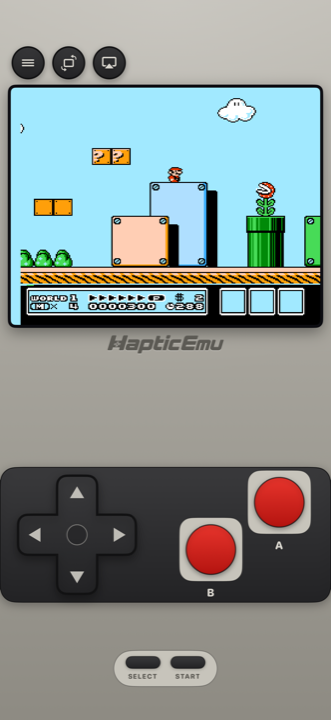
The NES is the easiest console to get going on a phone, for a very simple reason: the controller had a D-pad and two buttons. There's nothing to compromise on and nothing to configure.
Which means you can be playing in about a minute.
Getting started: the 30-second part
Already have the ROM on your phone?
- Get Haptic Emulator from the App Store. Free, ordinary install, nothing expires after a week.
- Tap import. From Files, a folder, or the clipboard. Zipped files are fine.
- Let the box art land. Covers download automatically and games file themselves on your NES shelf.
- Press start. Done.
Two buttons, plenty of room
Because the NES needs so little, the on-screen layout can be generous — a D-pad big enough to actually hit, and the two red buttons far enough apart that you won't catch the wrong one mid-jump.
The Taptic Engine matters more here than you might expect. NES games are precise: tight jumps, tight timing, not much forgiveness. Having each press tap back gives you a bit of what a real controller gave you, instead of pressing silent glass.
That said, this is the console where a physical D-pad is missed most. PlayStation, Xbox and MFi controllers all connect, and if you've got two, local two-player works for the co-op classics.
This is the big one for NES games
NES games were brutally hard, largely because arcades were where the money was and difficulty kept you feeding them. Most had no save at all — you finished in one sitting or you started over.
Being able to snapshot the game anywhere quietly turns a lot of "impossible" childhood games into ones you can actually finish. Some people think that's cheating. It's your phone.
Making it look right
Switch on a scanline or old-television filter. NES pixels are big and chunky, so they take the effect well, and it gets you much closer to the tube television these games were drawn for. Try a couple and pick whichever looks like your childhood.
One thing that isn't a bug: if sprites flicker when the screen gets busy, that's the real console showing through. The NES could only draw so much per line, and games deliberately flickered things to cope. It did that in 1988 too.
For the curious (optional)
Not needed to play — just background.
The NES output 256×240 pixels from a famously restrictive palette, and it didn't produce precise colours the way modern hardware does. Its output was interpreted slightly differently by every television, which is genuinely why people remember the same games looking different. There isn't one objectively correct colour reproduction, which is part of why filters vary.
The flicker has a specific cause: the console could only draw eight sprites on any single horizontal line. When more than eight lined up, something had to go, so developers alternated which ones were drawn each frame. On a CRT that read as a slight shimmer. Reproducing it faithfully is correct behaviour, not a fault.
Frequently asked questions
Is an NES emulator allowed on the App Store?
Why do sprites flicker in NES games?
Does Haptic Emulator come with games?
Can I save in games that had no save feature?
Do Game Genie codes work?
Your whole childhood. One download.
Haptic Emulator runs 21 retro systems on iPhone and iPad — free to play, and it ships no games: it plays the ones you already have.

Free to play · all 21 systems · iPhone & iPad